
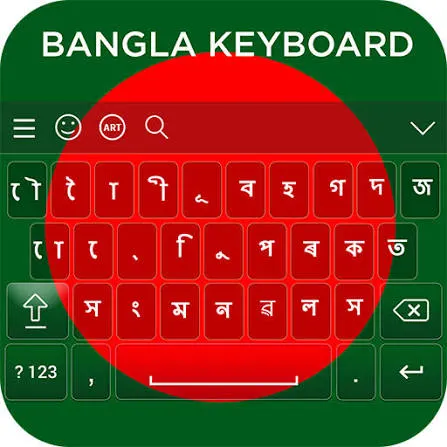
The Best Bangla Keyboard Apps for Android should make everyday writing easier. Whether you send family messages, write class notes, or reply to customers, the right keyboard should match how you type.
Start with Ridmik if you want a choice of Bangla layouts. Consider Gboard for everyday Bangla and English use, SwiftKey for typing Bangla with English letters, or Borno for another option with phonetic and fixed layouts.
This guide compares features from official app listings and support pages. It does not claim hands-on speed, battery, or accuracy testing.
Which Bangla Keyboard Should You Choose?
| App | Consider it for | Main reason to try it |
|---|---|---|
| Ridmik Keyboard | A choice of Bangla typing styles | Phonetic, National, and Probhat layouts |
| Gboard | Everyday Bangla and English use | Bangla language support within Google’s keyboard |
| Microsoft SwiftKey | Bangla typing with English letters | Bangla transliteration |
| Borno | Phonetic and fixed-layout typing | Layout choices plus editing tools |
These are recommendations by use case. Your preferred layout matters more than an app’s position in the list.
1. Ridmik Keyboard: A Good Choice for Bangla Layouts

Ridmik offers Bangla phonetic typing along with National and Probhat layouts. It also includes word suggestions, voice typing, a clipboard, and adjustable keyboard height.
Choose it if you want several ways to type Bangla in one app. For example, you can start with phonetic typing and try a fixed layout later.
However, its Google Play listing includes ads and in-app purchases, so check the available options before deciding.
2. Gboard: A Good Starting Point for Everyday Use

Gboard supports Bangla (Bangladesh), and some Android phones already use it as their default keyboard. Therefore, you may only need to add Bangla in its language settings.
The app also offers features such as voice typing, glide typing, and emoji search. Feature availability can vary by language and device.
If you already like Gboard for English, try its Bangla options first. This lets you compare layouts without immediately switching to another keyboard.
3. Microsoft SwiftKey: A Good Option for Bangla Transliteration

SwiftKey supports Bangla transliteration. You type a Bangla word using English letters, then choose the matching Bangla suggestion.
It offers both QWERTY and native-script layouts for supported transliteration languages. This makes it worth trying if you prefer English keys but want to send messages in Bangla script.
However, transliteration does not translate an English sentence. It changes how you write the sounds of a Bangla word.
4. Borno: Another Choice for Phonetic and Fixed Layouts
Borno supports phonetic and fixed keyboard layouts. Its Google Play listing also includes a clipboard, text editor, themes, and one-handed mode.
Consider it if you want to compare another Bangla typing app with Ridmik. First, select a familiar layout. Then try writing a short message and a longer paragraph.
Focus on how easily you can find letters, correct mistakes, and move through your text. Those details will help you choose a keyboard you can use comfortably every day.
How to Choose a Bangla Typing App?
Start With Your Typing Style
A phonetic keyboard suits people who prefer to write Bangla sounds with English letters. For example, you might enter “ami” to look for “আমি” in the suggestions. The exact result depends on the app and its settings.
A fixed layout places Bangla characters in set positions. If you already know a layout, check whether the app offers it before changing your typing habits.
Try the Words You Use Most
Do not judge a keyboard only by its themes. Instead, write your name, your address, and a few messages you send often.
Next, test words with joined letters, such as “শিক্ষা” and “বন্ধু.” Check whether you can enter them without repeated corrections.
For a fair comparison, use the same short paragraph in each app.
Check Bangla and English Switching
If you use both languages, try a sentence that includes Bangla words and an English name. Then check how easily you can change layouts and correct suggestions.
Also, adjust the key size if you often tap the wrong letter. A comfortable keyboard matters more than a long feature list.
How to Add a Bangla Keyboard on Android?
For Gboard, follow these steps:
- Install or update Gboard through Google Play.
- Open a notes or messaging app and tap a text field.
- Open the keyboard’s settings.
- Select Languages and add Bangla.
- Choose the available layout you want to use.
- Tap Done, then write a short test message.
Google’s setup guide explains language and layout selection. Menu names may differ between app versions and phones.
For another keyboard, open its app and follow the setup prompts. You can also search your phone’s Settings for “keyboard” to find the relevant controls.
Bangla Keyboard FAQs
Choose Ridmik if its Bangla layouts match your typing habits. Try Gboard first if you already use it for English and want to add Bangla. Neither choice is best for every person.
Yes. Use a phonetic or transliteration option. Ridmik offers Bangla phonetic typing, while SwiftKey documents Bangla transliteration. Remember that this changes the script, not the language of your sentence.
If your phone supports Google Play and the app is available there, you can install it through the store. You do not need to find a separate APK download. Use the official links above to check the app and developer before installing.
Start with the keyboard already on your phone if it supports Bangla. If its layout feels difficult, try Ridmik’s phonetic option or SwiftKey’s transliteration.
Leave a Comment